A rchive Date
[ 15-03-2020 ]
Category
[ Information Technologies ]
sub-Categoy
[ Microsoft ]
|
[Windows 2000 Pro: Networking
Windows 2000 Professional dramatically changes the methods used to connect and configure networking components. In this Windows version, the interfaces for both LAN and dial-up networking have been reworked to allow for a quicker creation of new connections and an easier configuration of existing connections. This document should provide you with enough information to begin networking with Windows 2000 Professional.
Table of Contents
- Local Area Connections
- Dial-Up Connections
Local Area Connections
When configuring the LAN connection in previous Windows versions, users were required to open the Network Control Panel, make any desired changes, and reboot. Those days, hopefully, are gone forever. Windows 2000 Professional provides a new interface for configuring a machine’s network settings with a new look and less rebooting.
Figure A
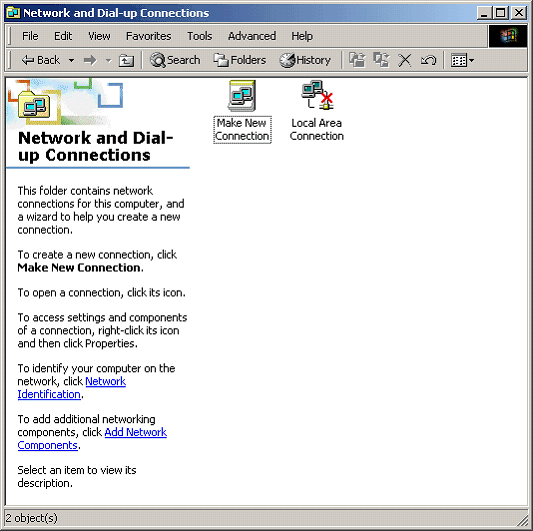
The new Network And Dial-Up Connections interface is shown in Figure A. From here, you can access the properties of your workstation’s LAN connection, enable and disable its LAN card, or establish a new dial-up networking connection. In the Advanced drop-down menu of the Network And Dial-Up Connections window, shown in Figure B, you can specify the identification of your machine, select advanced settings, or add additional networking components, such as an SNMP Agent.
Figure B
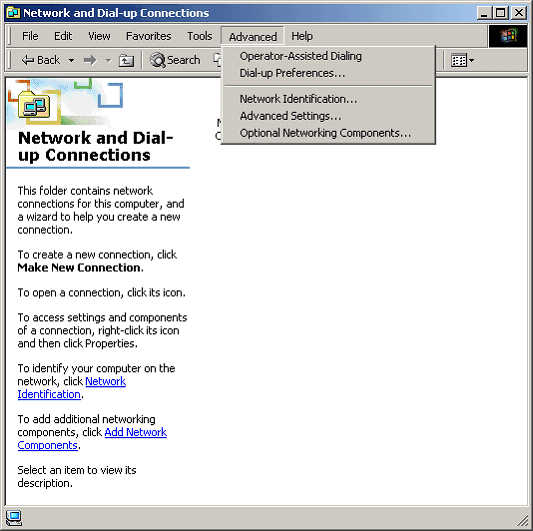
Figure C shows the box that appears when you right-click on a LAN connection. As you can see, you can choose to enable or disable a LAN connection with a simple click of a mouse.
Figure C

This has the same effect as opening a command prompt and typing in IPCONFIG /RELEASE followed by IPCONFIG /RENEW. Through this hot-menu, you can also access the properties of the workstation’s LAN connector.
Figure D
Figure D displays the Local Area Connection Properties window. You can see that components can be enabled and disabled by simply checking the box next to them. If you do not run a home LAN, you can disable the Client For Microsoft Networks and the File And Printer Sharing For Microsoft Networks. You only need TCP/IP to access the Internet. By disabling those interfaces, you’ll leave hackers with one less porthole to access your computer. As you can also see, you can enable the Show Icon In Taskbar When Connected option in this panel. This will allow you to see the amount and frequency of activity your computer is producing on the network.
Figure E
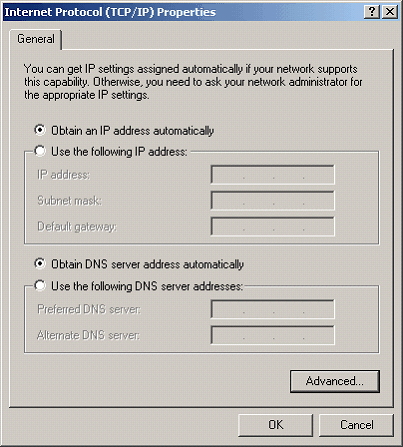 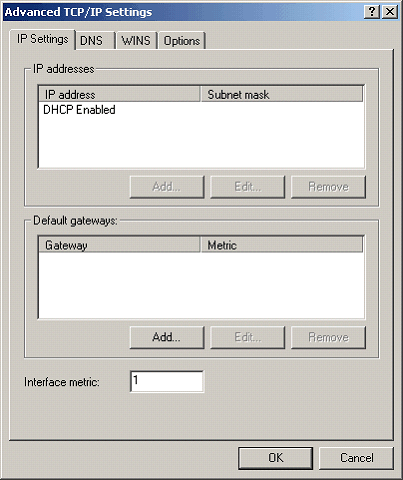
Figure E shows the interface for configuring TCP/IP settings. You can configure your workstation’s IP address to be assigned automatically by a DHCP/BOOTP server or set it manually. Similarly, you can manually enter your DNS server addresses, or you can allow your DHCP/BOOTP server to specify them for you. As you can see in the second window above, Advanced TCP/IP Settings, you can specify additional IP addresses, gateways, DNS, and WINS servers using the various tabs.
A nice feature of Windows 2000 Professional is its Automatic Private IP Addressing (APIPA) ability. If you run a small peer-to-peer network and do not have a server, you can allow APIPA to assign your machine an IP in the range of 169.254.0.1 to 169.254.255.254. Your computer will randomly pick out one of these 65,534 addresses and broadcast on the network to see if it is available. If the address is not available, it generates another address and tries again. It is usually not recommended to allow your computer to choose its own IP address, as it can make the network chatty and will cause trouble as you add more machines. Even though Microsoft has reserved the above range with the Internet Assigned Numbers Authority (IANA) so you don’t have to worry about routing issues with the Internet, it’s usually better to use one of the accepted reserved addresses, such as 10.x.x.x or 172.16.x.x, for your internal network.
Figure F

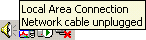
Figure F is an image from the systray. The icon on the far right is the Windows 2000 Professional network interface icon. As mentioned earlier, you can turn this icon on full-time by checking the box in the properties section of the LAN Connector, but typically, if you see the icon above, you need to do some troubleshooting. By placing your mouse over the icon, a pop-up box will appear and usually tell you what is wrong with your LAN connection, as shown in Figure G.
Figure G
Dial-Up Connections
The interface for configuring a dial-up connection within Windows NT is located under My Computer. Windows 2000 Professional offers a much more intuitive interface located in a more appropriate place, the Network And Dial-Up Connections window, shown in Figure H.
Figure H
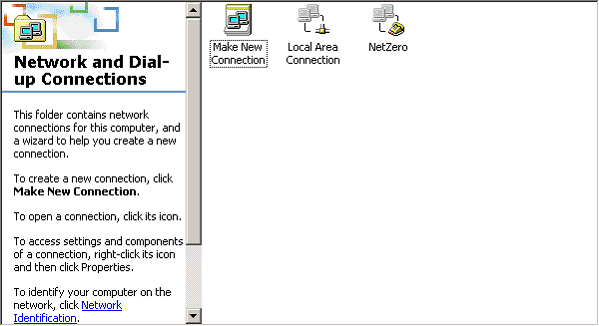
The above interface is very similar to that of Windows 9x, in that the Network Connection Wizard, shown in Figure I, must be run to establish a new connection.
Figure I
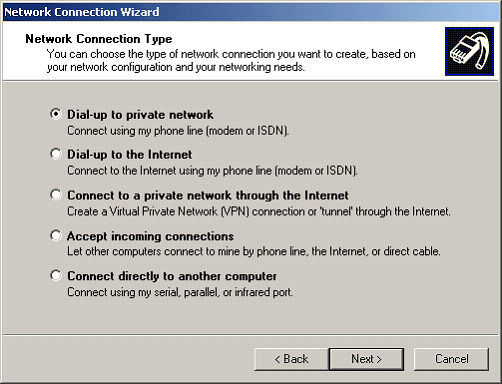
There are five different options to choose from when creating a new network connection. Here, we’ll discuss the Dial-Up To Private Network option. When configuring this option, you are asked to provide a phone number for the network that you are dialing into (see Figure J).
Figure J
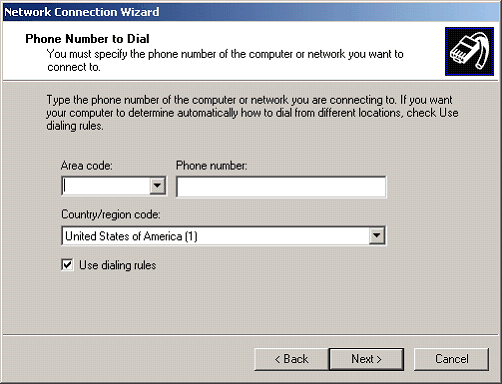
By enabling the Use Dialing Rules option, you can specify an area code and country code to dial into. You can, of course, choose to leave the dialing rules option disabled and specify the area code and prefix in the phone number itself, but enabling it has additional benefits. If your computer is mobile, you can specify in the Phone And Modem Options control panel, shown in Figure K, the area code in which you are currently located, and the dialer will know whether to dial long-distance or not. You can also specify the disabling or enabling of call waiting in the phone and modem options control panel with the changes cascading to all dial-up networking connections.
Figure K

The next step in the wizard is very important. As in Figure L, you can choose whether to make this connection available to all users or only to yourself. If you make it available only to yourself and someone else uses the machine, the connection will not be available to that person, provided you use different logon IDs.
Figure L
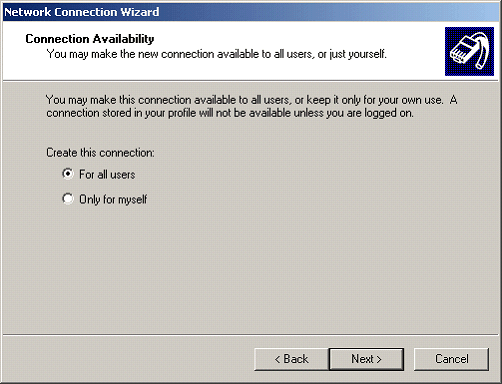
Usually, it is recommended that you set the connection to be for all users, unless you have a compelling reason not to allow others access to the same network. You also need to remember that the user ID and password is not stored in the connection for anyone except the person that is currently logged in. If you log out and another person logs in, that person will have to reenter the user ID and password to connect.
Figure M
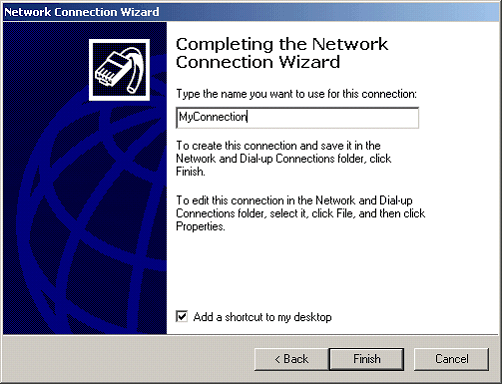
Figure M shows the final step in configuring your dial-up to private network connection. Here you can specify the name of the connection and whether you want a shortcut placed on the desktop or not. While this completes the dial-up networking connection setup, there are many advanced options available by opening the properties of your new connection (see Figure N).
Figure N
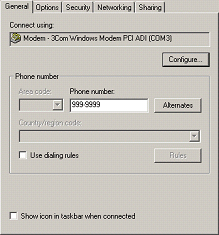
Figure N shows the most important of the advanced settings available in the dial-up connection’s properties. The General tab allows you to specify a modem (if there is more than one available) and change the phone number and dialing rules. Also, you can choose to display an icon on the taskbar to show activity and connection status. The Options tab allows you to display the progress of the connection or simply disable it while connecting. You can also require prompting for user ID, password, and phone number, as well as specify a domain to log in to if dialing into an NT/2000 domain. You can also choose the number of redial attempts the computer should make. The Networking tab allows you to specify what protocols you wish to use to connect to the network. By default, the protocols installed on your machine are used, but additional protocols and clients (Netware, for example) can be added.
©2001 TechRepublic, Inc. www.techrepublic.com. All rights reserved.]
|